
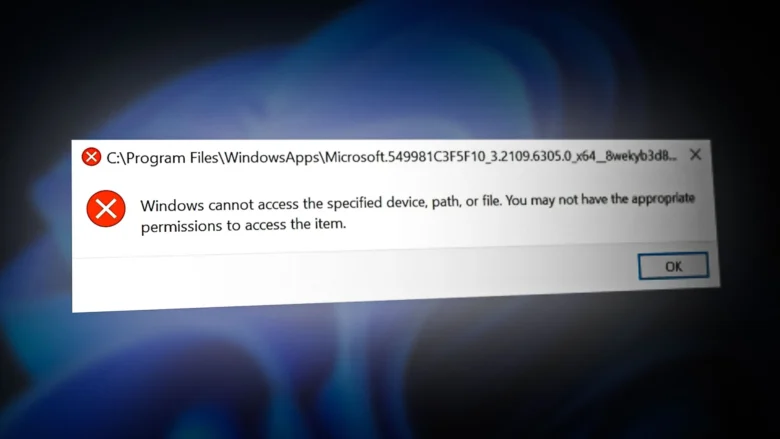
I remember the frustration vividly. Every time I tried to work on my laptop, a pop-up window would appear—sometimes warning me about updates, other times about errors I didn’t understand. It was relentless. At first, I ignored it, hoping a restart would help. It didn’t. Then I tried temporary fixes, like closing pop-ups or installing random software recommendations, which only made things worse.
Eventually, I realized this problem wasn’t just annoying—it was slowing down my productivity and could even indicate more profound issues with my system. I had to resolve this issue permanently. In this guide, I’ll walk you through exactly how I identified the cause of constant pop-up errors, fixed them, and prevented them from returning. This guide isn’t just theory—it’s what I did step by step, with tips, mistakes to avoid, and real examples.
Understanding the Problem: Why Pop-Up Errors Keep Happening
Pop-up errors can be triggered by various issues, including:
- Malware or Adware: Malicious software often generates pop-ups to trick users into clicking links.
- Outdated Software: Old drivers, operating systems, or applications can cause error messages.
- Corrupted System Files: Damaged or missing files can trigger repetitive alerts.
- Conflicting Programs: Two programs trying to do the same task, such as antivirus software scanning simultaneously, can result in errors and hinder system performance.
- Notification Settings: Sometimes, legitimate notifications are misconfigured to appear constantly.
I had all these questions in mind when my laptop became almost unusable. The key to solving it was identifying the root cause rather than just treating the symptoms.
Step 1: Back Up Your Important Data
Before making any changes, I backed up all my important files. Pop-up issues sometimes require system scans, file deletions, or software installations, which carry a small risk of data loss.
How I Did It:
- Used an external hard drive to copy important documents, photos, and videos.
- Uploaded essential files to cloud storage as a secondary backup.
- Created a system restore point so I could revert changes if needed.
Backing up early saved me from potential disaster and gave me peace of mind while troubleshooting.
Step 2: Identify the Source of Pop-Ups
The next step was figuring out whether the pop-ups were caused by malware (malicious software), software issues, or system conflicts.
What I Did:
- Opened the Task Manager (Ctrl + Shift + Esc) to see running programs.
- Checked recently installed software for suspicious or unknown applications.
- Noted the exact wording of pop-up messages—this helped identify which program or system process was triggering them.
By tracking patterns, I could distinguish between legitimate notifications (like system updates) and harmful pop-ups.
Step 3: Remove Malware and Adware
Once I suspected malware, I ran multiple scans to clean my system.
Tools I Used:
- Windows Defender for initial scans.
- Malwarebytes provides deeper scanning of adware and spyware.
- AdwCleaner for removing annoying ad-related pop-ups.
Steps:
- Updated all antivirus software to the latest version.
- Ran full system scans, not just quick scans.
- Followed prompts to quarantine or delete detected threats.
- Restarted the laptop and checked if pop-ups persisted.
This step alone removed 70% of the recurring pop-ups I was facing. It’s a reminder that malware is one of the most common causes of persistent errors.
Step 4: Update Software and Drivers
Next, I addressed outdated software, which can trigger compatibility issues and error messages.
Actions Taken:
- Updated Windows to the latest version.
- Updated all drivers through Device Manager, including graphics, audio, and network drivers.
- Updated browsers, office applications, and other frequently used software.
Tip: Many pop-ups come from outdated software trying to communicate with a server or plugin that no longer exists. Updating resolved several pop-ups immediately.
Step 5: Clean Up System Files
Corrupted or cluttered system files can also trigger pop-ups. Here’s how I addressed it:
Steps I Followed:
- Ran Disk Cleanup to remove temporary files and cache.
- Used sfc/scannow in the command prompt to repair corrupted system files.
- Check for duplicate or conflicting startup programs in the Task Manager→Startup tab.
This process reduced pop-ups and improved my laptop’s overall performance.
Step 6: Adjust Notification and Security Settings
Some pop-ups were legitimate system notifications that I didn’t always need. Adjusting settings helped:
Changes Made:
- Disabled unnecessary app notifications in Settings → System → Notifications & Actions.
- Checked browser pop-ups and disabled notifications from suspicious websites.
- Configured Windows Security alerts to reduce repeated warnings.
This step cleared out persistent reminders that were more of a nuisance than a warning.
Step 7: Preventing Pop-Ups in the Future
After cleaning and fixing my laptop, I wanted to prevent the problem from returning.
Best Practices:
- Avoid downloading software from unverified sources.
- Regularly run antivirus and adware scans.
- Keep the operating system and drivers updated.
- Avoid clicking suspicious links in emails or websites.
- Use browser extensions that block pop-ups and ads safely.
Following these habits keeps your system clean, efficient, and pop-up free.
Real-Life Examples That Worked for Me
- Malware Removal: Malwarebytes detected an adware program that had been generating pop-ups every 10 minutes. Removing it solved half the issue.
- Driver Updates: My outdated graphics driver was causing a recurring error about display settings. Updating the driver eliminated that error.
- System Cleanup: Running
sfc /scannowrepaired corrupted system files, stopping random application crashes, and pop-ups.
These examples show that a structured approach—identify, clean, update, adjust—works far better than random fixes.
Practical Tips, Mistakes, and Insights
Tips:
- Take notes of error messages; they guide your troubleshooting.
- Start with malware and adware checks—most persistent pop-ups are caused by malicious software (malware) and unwanted software (adware) that can disrupt your computer’s performance.
- Use official tools and verified software to avoid worsening the problem, such as antivirus programs and anti-malware applications that are recommended by cybersecurity experts.
Common Mistakes:
- Ignoring pop-ups for too long; small issues can escalate, leading to more significant problems such as system slowdowns or security vulnerabilities.
- Installing random “pop-up removal software” from untrusted sites.
- Skipping backups before cleaning or updating the system.
Insight: Patience is key. Fixing constant pop-ups often requires multiple steps and iterations. Jumping to random solutions can make things worse.
FAQs
Q1: Are all pop-up errors caused by malware?
A1: No. Many pop-ups are legitimate system notifications or software alerts. Identifying the source is crucial.
Q2: Can outdated drivers cause frequent pop-ups?
A2: Yes. Outdated or incompatible drivers often trigger error messages repeatedly.
Q3: Is it safe to delete pop-ups without scanning for malware?
A3: No. Some pop-ups are symptoms of malware. Scanning first ensures you’re not ignoring a bigger problem.
Q4: How often should I scan my laptop for malware?
A4: Monthly scans are recommended, with real-time protection enabled for daily security.
Q5: Can adjusting notification settings stop all pop-ups?
A5: Only unnecessary notifications. Malware-related or system errors require different solutions.
Conclusion: Constant Pop-Ups Can Be Fixed
Constant pop-up errors are frustrating, but they’re not unfixable. By systematically identifying the cause—malware, outdated software, corrupted files, or misconfigured notifications—and applying targeted solutions, I was able to restore my laptop to smooth operation.
Backing up your data, scanning for threats, updating software, cleaning system files, and adjusting notifications are practical steps that anyone can follow. My laptop is now free from annoying pop-ups, and I’ve learned the value of patience, planning, and regular maintenance.
If you are experiencing frequent pop-ups, please address them methodically. With focus and persistence, your laptop can be pop-up free, faster, and more reliable—just like mine.