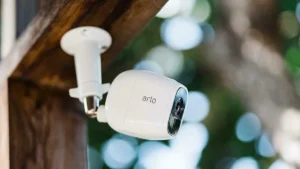
In 2026, the average connected household runs 35–50 devices simultaneously. Smart thermostats, leak sensors, 4K security cameras, streaming TVs, voice assistants, and robotic vacuums are all competing for bandwidth on the same wireless network.
When devices disconnect or feel “laggy,” most people assume they need a faster internet plan.
In reality, speed is rarely the issue.
Typically, the following factors cause Wi-Fi problems:
- Poor router placement
- Frequency congestion
- Signal obstruction
- Inadequate hardware for the size of the home
This guide explains how to fix coverage issues systematically—without unnecessary upgrades or expensive trial and error.
1. Router Placement: The Foundation of Strong Wi-Fi
After working with home networking setups for years, one consistent pattern emerges:
Most Wi-Fi problems start with poor router placement.
The “Golden Triangle” Rule
For optimal coverage, your router should be:
- Elevated (at chest height or higher)
- Centrally located
- Positioned in an open area
Why Height Matters
Wi-Fi signals radiate outward and downward. Flooring materials absorb a significant portion of a router’s signal energy when it sits on the floor.
Why Corners Are Problematic
Placing a router in a corner sends part of its signal outside your home instead of into it.
If possible, place the router:
- Near the physical center of your home
- Away from walls and large metal surfaces
Avoid the “Kitchen Trap.”
Kitchens are one of the worst places for routers.
Reasons:
- Microwave ovens operate on the 2.4 GHz frequency
- Refrigerators contain large metal surfaces
- Plumbing and tile can disrupt signal paths
Even if the internet line enters near the kitchen, it’s often worth relocating the router via a longer Ethernet cable.
2. Managing Frequency Bands the Smart Way
Modern routers operate on multiple bands:
- 2.4 GHz
- 5 GHz
- 6 GHz (Wi-Fi 6E / Wi-Fi 7)
Each has strengths and weaknesses.
The 2.4 GHz Congestion Problem
Most smart home devices (IoT) rely on 2.4 GHz because it offers a longer range.
However, it has:
- Limited bandwidth
- Higher interference
- Heavy neighborhood overlap
When laptops, gaming consoles, and TVs share this band with dozens of smart bulbs and sensors, congestion increases.
The Practical Fix: Separate Your Networks
Instead of using a single combined network name (SSID), split your bands:
Example:
- Home_Main (5 GHz / 6 GHz)
- Home_IoT (2.4 GHz)
Move:
- Phones
- Laptops
- TVs
- Gaming consoles
to the faster 5 GHz or 6 GHz bands.
Reserve 2.4 GHz strictly for:
- Smart plugs
- Sensors
- Smart lighting
- Entry-level cameras
This reduces cross-traffic interference and improves stability.
Channel Optimization Tip
For 2.4 GHz, manually set your channel to:
- 1
- 6
- or 11
And use a 20 MHz channel width.
These are the only non-overlapping channels, which reduces interference in apartments and dense neighborhoods.
3. Mesh Systems vs Extenders: What Actually Works in 2026
If your home exceeds roughly 1,500 square feet (140 m²), a single router may struggle.
But not all signal “boosters” perform equally.
Wi-Fi Extenders: Limited Improvement
Extenders rebroadcast your existing signal.
Common drawbacks:
- Often create a second network name
- Reduce overall speed
- Struggle with seamless device handoff
They can help in small areas but are rarely ideal long-term solutions.
Mesh Networking: The Modern Standard
Mesh systems use multiple coordinated nodes to create one unified network.
Benefits:
- Seamless roaming
- Single network name
- Stable coverage across floors
- Improved load balancing
When shopping for mesh hardware, look for:
- Tri-band or quad-band systems
- Dedicated wireless backhaul channels
A dedicated backhaul prevents nodes from consuming device bandwidth when communicating with each other.
4. Identifying Physical Signal Blockers
Wi-Fi signals are radio waves—and certain materials disrupt them significantly.
Common household blockers:
Mirrors
Large mirrors contain metallic backing that reflects signals away from rooms.
Aquariums
Water absorbs 2.4 GHz frequencies efficiently. A large fish tank can create a noticeable dead zone behind it.
Brick, Concrete & Stone
Dense construction materials absorb or weaken signals, especially between floors.
When Walls Are the Problem: Powerline Adapters
If you need connectivity in a garage, basement, or detached room:
Powerline adapters transmit internet data through your home’s electrical wiring.
Advantages:
- Bypass thick walls
- No need to run Ethernet cables
- Stable connection for fixed devices
Performance varies depending on wiring quality, but they can be highly effective in challenging layouts.
5. Essential Network Optimization Checklist
Here’s a quick technical audit you can perform today:
| Feature | Recommended Action | Why It Matters |
|---|---|---|
| Firmware | Enable auto-updates | Improves security and radio stability |
| WPA3 | Activate in settings | Stronger encryption standard |
| QoS | Prioritize work & streaming | Prevents IoT congestion |
| DNS | Use reputable DNS provider | Reduces lookup latency |
| Device Limit | Check connected devices | Prevents router overload |
Once 20–25 devices connect simultaneously, many ISP-provided routers experience difficulties. If your router reboots randomly, hardware limitations may be the cause.
6. The Guest Network Strategy for Smart Homes
A practical security measure in 2026 is isolating smart devices on a guest network.
Why this works:
- Many IoT devices use simplified security protocols
- Isolating them prevents lateral access to personal devices
- Reduces broadcast chatter affecting main devices
Create:
- Main network → Phones, laptops, work devices
- Guest/IoT network → Smart plugs, bulbs, sensors
This improves both performance and security.
Frequently Asked Questions
Could you please explain why my Wi-Fi functions well indoors, but my smart doorbell has difficulties?
Exterior walls often contain metal mesh, brick, or stucco reinforcement. These materials reduce signal penetration. Placing a mesh node closer to the door-facing wall typically improves stability.
Should I upgrade to Wi-Fi 7?
Wi-Fi 7 benefits users with:
- Multi-gigabit internet plans
- 6 GHz-compatible devices
- Heavy local file transfers
For most households, Wi-Fi 6 or 6E remains sufficient and cost-effective.
Can too many devices overload a router?
Yes. Entry-level routers can become overwhelmed by:
- Constant IoT chatter
- Multiple simultaneous video streams
- Smart camera uploads
Upgrading to a higher-capacity router or mesh system resolves this permanently.
Does internet speed affect smart home reliability?
Only partially. Many smart devices use minimal bandwidth. Signal quality and congestion, not raw internet speed, typically influence reliability.
How do I identify Wi-Fi dead zones?
Use a Wi-Fi heatmap app to measure signal strength throughout your home. Walk room to room and look for weak-signal areas (typically below -70 dBm). Small router adjustments can significantly improve coverage.
Is Ethernet still better than Wi-Fi?
For stationary devices such as desktop PCs, gaming consoles, or streaming boxes, the answer is definitely yes. Wired connections reduce wireless congestion and improve overall network performance.
Final Thoughts
A smart home depends on reliable connectivity more than high advertised speeds.
In most cases, improving coverage requires:
- Better router placement
- Proper band management
- Strategic hardware upgrades
- Minimizing interference
You don’t need the fastest internet plan available. You need efficient signal distribution.
Your Next Step
Before buying new equipment:
- Move your router to a higher, central position.
- Separate your frequency bands.
- Check for physical obstructions.
- Test signal strength room by room.
Small structural adjustments often deliver bigger improvements than expensive upgrades.
Build your network for stability today—and it will support the smart devices of tomorrow.